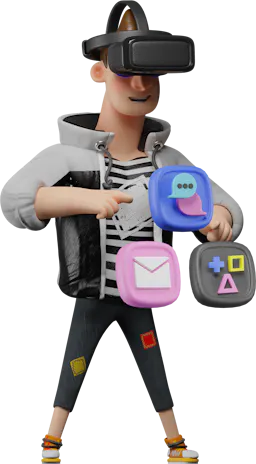
One of the most impactful January updates on the IMI service is Kling 2.6 Motion Control. It literally lets you control a character's movement frame by frame, transferring actions from real video to a static image. Previously, this level of editing required a filming crew, actors, and weeks of post-production. Now, it takes just a couple of files and a click of the "Generate" button.
Kling 2.6 Motion Control is a specialized multimodal model that understands human body physics and cinematic camera movement logic. Simply put, the neural network no longer "guesses" how a character should move. It precisely replicates movement from a reference video and transfers it to your character while fully preserving their appearance.
The result is predictable, visually clean videos suitable for marketing, social media, and production.
At its core, Motion Control is based on a simple yet powerful idea:
Movement, facial expressions, tempo, and weight distribution are taken from the video, while appearance and identity come from the image. Unlike previous image-to-video models, there's minimal AI "improvisation" here. Kling 2.6 acts as a digital "puppeteer," not an inventor.
The service confidently handles dancing, fight scenes, and athletic movements. The model understands body inertia and balance. If the reference video features a jump or a sharp kick, the generated character appears heavy and physically plausible, not "clay-like" or obviously AI-generated.
Hands are a common weak point in AI video, but this aspect is significantly improved here. Finger and hand motions replicate the real video, which is crucial for gestures, demonstrations, and product scenes.
The background from the reference video is not mandatory. You can change the surroundings using a text description while preserving the character's movement. For example, the character continues walking or dancing but in a different space.
Kling 2.6 offers different camera orientation modes. You can define how strictly the AI should follow the camera movements from the video or adhere to the composition of the source image. This provides control over the frame's narrative.
Simplifying it to a "for dummies" level, the process looks like this:
The result's quality directly depends on the image. Pay attention to two key points:
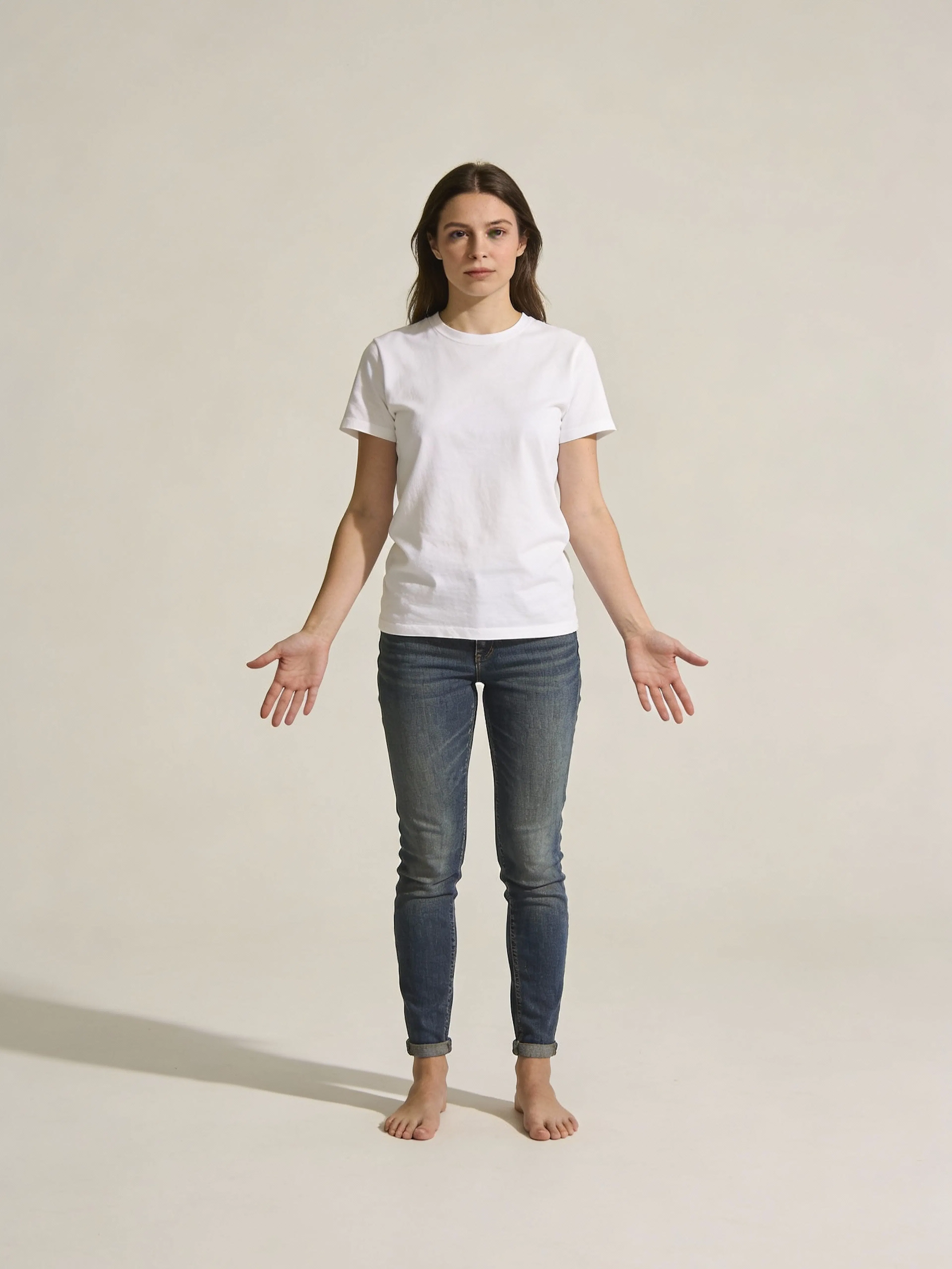
The reference video is the "skeleton" of the future animation.
The best results come from videos with: one clear character; a simple, contrasting background; and matching scale.
For a talking-head portrait, use a close-up shot. Applying a full-body walking video to a portrait might cause the face to "float" and jerk.
After uploading the image and video, simply click Generate. The output is a ready-made video optimized for TikTok, Instagram, or YouTube. You can download and use it immediately.
Create a brand character and animate it using movements from real people. For example, company employees record videos, and the character replicates their gestures and expressions—no studio or camera required.
Motion Control is excellent for hand-centric scenes: interacting with an interface, gadgets, or physical products. Movements look natural and clear.
Take one high-quality "hero" motion video and apply it to different characters across various age groups, appearances, and ethnicities. The movement remains the same, allowing easy content adaptation for different markets without reshooting.
Kling 2.6 Motion Control isn't just another update; it's a step towards high-quality, controlled video production. This is precisely why we prioritized its integration into the IMI platform as quickly as possible.
If before you had to adjust your plans to fit AI video results, now the results follow your commands. We hope this guide is helpful—and that social media gets flooded with a wave of awesome, viral video content.
Keywords: Kling 2.6 Motion Control, AI video generation, controlled AI video, motion transfer, image to video, video production, AI video editing, virtual influencers, product demonstration AI, IMI platform, AI video tool, character animation AI, AI for marketing.
Max Godymchyk
Entrepreneur, marketer, author of articles on artificial intelligence, art and design. Customizes businesses and makes people fall in love with modern technologies.